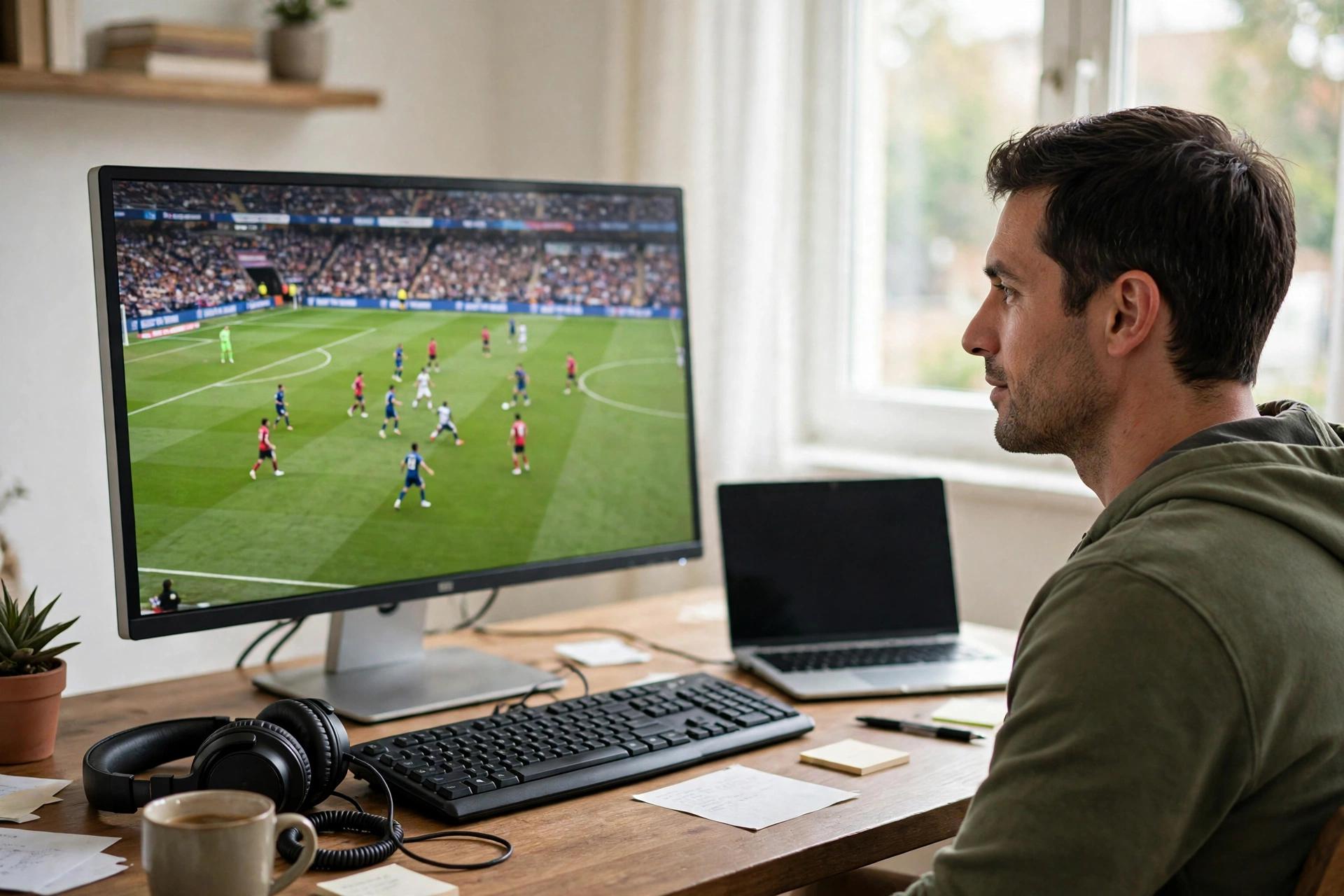
IPTV on Windows PC: The Ultimate Easy Guide to Watch Live TV on Your Computer (2026)
Your computer is already one of the best screens in the house — big, sharp and always connected. IPTV on Windows PC puts thousands of live channels, sports, movies and series on that screen, with no extra box, no smart TV and no monthly cable bill.
Whether you watch at your desk, on a laptop in bed or on a PC plugged into the living-room TV, the setup takes about ten minutes. In this guide, you will learn the easiest ways to watch live TV on your computer, the best free and paid players, and how to fix the problems people run into most.
What Is IPTV on Windows PC?
IPTV on Windows PC simply means watching internet TV through an app or a web player on a computer running Windows 10 or Windows 11. Your IPTV provider sends you a playlist link (M3U) or an Xtream Codes login, and a player app on your PC turns that link into channels, a TV guide and on-demand movies.
Unlike a Firestick or a smart TV, a PC gives you extra freedom: you can record a match while you watch another channel, open the guide in a second window, connect the PC to a big TV with an HDMI cable, and use a keyboard shortcut to switch channels instantly. A laptop also makes IPTV portable — the same subscription works at home, at the office or on holiday.
What You Need Before You Start
Before you set things up, make sure you have these four things ready.
- A PC or laptop running Windows 10 or Windows 11 with a stable internet connection.
- An IPTV subscription with an M3U playlist link or Xtream Codes login. If you do not have one yet, see the 4K Media TV Premium plans: 1 to 4 devices, from $19.99 a month, with a free 24-hour trial.
- A player app — VLC Media Player is free and takes two minutes to set up (see below).
- Enough speed for the quality you want: about 25 Mbps for smooth 4K, according to the FCC broadband speed guide. Test your connection with Ookla Speedtest before you start.
Tip: a wired Ethernet connection beats Wi-Fi for live sports on a PC. If your desk is near the router, plug in — it removes most buffering before it starts.
IPTV on Windows PC with VLC Media Player: The Easiest Method
VLC is free, open source and already installed on millions of computers. It is the fastest way to get live TV on your PC.
- Download VLC from the official VideoLAN website and install it.
- Open VLC, click Media in the top menu, then choose "Open Network Stream".
- Paste your M3U playlist link into the address box and click Play.
- Wait a few seconds while the playlist loads, then open View, then Playlist, to see all your channels in a list.
- Double-click any channel to watch it. Press Ctrl+L at any time to jump back to the channel list.
VLC is simple and reliable, but it has no TV guide and no channel logos. If you want a proper guide, favourites and catch-up, move on to one of the dedicated players below.
Dedicated Players: MyIPTV Player and IPTV Smarters
Dedicated IPTV players give you the full TV experience on a computer: a program guide, channel groups, favourites and video on demand.
MyIPTV Player (Microsoft Store). Free, built for Windows, and easy to set up: install it from the Microsoft Store, add your M3U playlist or Xtream Codes login, and it loads your channels with an electronic program guide. Microsoft's own Windows support pages explain how to install apps from the Store safely.
IPTV Smarters Pro (via emulator or web player). There is no official Windows version, but many users run it through the BlueStacks Android emulator, or use the web player version their provider supplies. Our IPTV Smarters Pro setup guide explains the playlist and login steps, which are the same on every device.
Kodi with the PVR IPTV Simple Client. Kodi is free and turns a PC into a full media centre. Install Kodi, enable the PVR IPTV Simple Client add-on, paste your M3U link and EPG address, and you get a guide, recordings and a remote-friendly interface — ideal if the PC is connected to a TV.
Watching IPTV in Your Browser
Some providers offer a web player: you log in on their website and watch channels directly in Chrome, Edge or Firefox, with nothing to install. This is the quickest option of all for a work laptop or a shared computer, and it is perfect for a quick match at lunchtime.
Browser watching has limits, though. There is usually no recording, the guide is basic, and the stream quality depends on the browser. For daily watching, a dedicated player is a better choice. If you watch on a laptop and a TV as well, our IPTV on Smart TV guide covers the big-screen setup.
Fixing Common Problems on a PC
Most IPTV problems on a PC have simple causes. Here are the ones users report most.
The playlist will not load. Check the link for typos — one wrong character breaks it — and make sure your subscription is still active. If VLC shows nothing, try the same link in MyIPTV Player to see whether the problem is the app or the playlist.
Buffering or freezing. This is almost always the connection, not the player. Test your speed, switch to a wired connection if you can, and close downloads and cloud backups while you watch. Our IPTV buffering fixes guide walks through every step.
No sound, or sound from the wrong speakers. In VLC, open Tools, then Preferences, then Audio, and pick the right output device. In Windows, right-click the speaker icon in the taskbar and check that the correct speakers or headphones are selected.
The guide is empty. In MyIPTV Player or Kodi, check that the EPG address is filled in and choose "Update EPG". A full guide can take a few minutes to load the first time.
IPTV on Windows PC vs Smart TV: Which Is Better?
A smart TV wins on comfort: you sit on the sofa, pick up the remote and watch. A PC wins on flexibility: recording, multi-window viewing, a bigger choice of players and the freedom to plug into any screen. Many viewers use both — the PC for sports at the desk and the TV for movies in the evening — and one subscription covers them all, since 4K Media TV plans allow 1 to 4 devices.
Ready to try it? See the 4K Media TV plans: Premium IPTV with 1 to 4 devices, a 24-hour free trial and activation within 10 minutes to 8 hours.
Related Guides
- IPTV on Chromecast: The Ultimate Easy Guide to Cast Live TV in 2026
- How to Watch IPTV on Android: Phone, Tablet & Android TV Setup Guide (2026)
- Best IPTV Apps & Players in 2026 for Firestick, Android & Smart TV
- How Much Internet Speed Do You Need for IPTV? The Complete 2026 Guide
- IPTV Buffering? 9 Fixes That Actually Stop the Freezing
More from 4K Media TV: our sister guides live at stream4kmedia.com and originetv.space, the same Premium IPTV service, with setup help for every device.
Try it free for 24 hours: message us on WhatsApp at +212 638 196 267 and we will set up your free trial. You can also follow our WhatsApp Channel for offers and updates.
Try 4K Media free for 24 hours
Full Premium access — every channel, every match, all VOD — free for a full day.
See Premium Plans Get 24H Trial