IPTV on Chromecast: The Ultimate Easy Guide to Cast Live TV in 2026
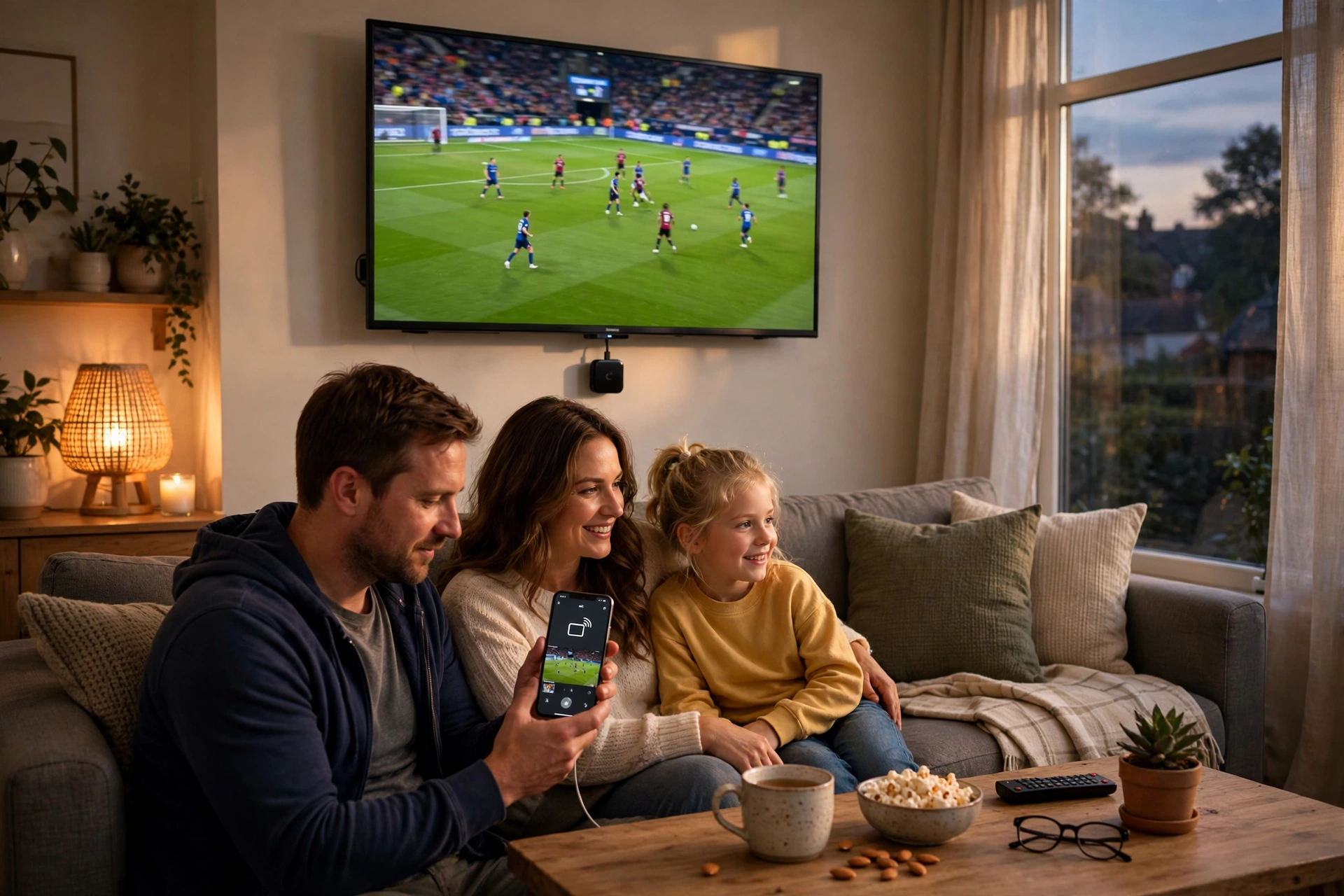
You do not need a smart TV to watch live TV on the big screen. IPTV on Chromecast turns any television with an HDMI port into a full streaming setup: you pick a channel on your phone, tap the cast button, and the match, movie or news channel plays on your TV.
Chromecast is one of the cheapest ways to bring IPTV into a living room, a bedroom or even a hotel room. In this guide, you will learn exactly how it works, how to set it up in about ten minutes, which apps work best, and how to fix the problems people run into most.
What Is IPTV on Chromecast and How Does It Work?
A Chromecast is a small device that plugs into the HDMI port of your TV. It has no remote and no channels of its own: it receives a video stream from your phone, tablet or computer over your home Wi-Fi and shows it on the TV.
When you cast, your IPTV app sends the live channel to the Chromecast. Your phone becomes the remote control — you browse channels, change the volume and pause the stream — while the TV does the actual playing. Because the stream goes straight from your internet connection to the Chromecast, your phone battery is barely touched once casting starts.
There are two kinds of Chromecast. The classic Chromecast dongle only casts from another device. Chromecast with Google TV is a full smart-TV stick with its own remote, apps and home screen, so you can install an IPTV player directly on it. Both work well, and this guide covers both.
What You Need Before You Start
Before you start casting, gather these four things and the process will go smoothly.
- A Chromecast (any generation) or a TV with Chromecast built in, plugged into an HDMI port and powered on.
- A phone, tablet or computer on the same Wi-Fi network as the Chromecast.
- An IPTV subscription with an M3U playlist link or Xtream Codes login. If you do not have one yet, see the 4K Media TV Premium plans: 1 to 4 devices, from $19.99 a month, with a free 24-hour trial.
- A stable internet connection — about 25 Mbps for smooth 4K, according to the FCC broadband speed guide. Test your speed with Ookla Speedtest before you blame the app.
Tip: a 5 GHz Wi-Fi network works better for casting than 2.4 GHz, especially for 4K channels. If your router offers both, connect the Chromecast and your phone to the 5 GHz band.
IPTV on Chromecast: Step-by-Step Setup by Casting From Your Phone
This is the classic way to cast, and it works with any Chromecast dongle.
- Plug the Chromecast into your TV's HDMI port, connect its power cable, and switch the TV to that HDMI input.
- Install the Google Home app on your phone and follow its steps to connect the Chromecast to your Wi-Fi network.
- Install an IPTV player that supports casting on your phone — IPTV Smarters Pro and TiviMate are the most popular choices.
- Open the player, add your playlist or Xtream Codes login, and wait for the channels to load.
- Play any channel, tap the cast icon in the player, and choose your Chromecast from the list.
- The channel appears on your TV within a few seconds. Use your phone to change channels, adjust the volume or stop the stream.
If the cast icon does not appear, check that your phone and the Chromecast are on the same Wi-Fi network — this is the cause of the problem nine times out of ten. Our IPTV Smarters Pro setup guide walks through adding a playlist step by step.
IPTV on Chromecast with Google TV: Install an App Directly
If you own a Chromecast with Google TV, you can skip the phone entirely and install an IPTV player on the stick itself, just like on a Firestick or Android TV.
- From the Google TV home screen, open the Google Play Store and search for TiviMate or IPTV Smarters Pro.
- Install the app, open it, and add your M3U playlist or Xtream Codes login.
- Wait for the channels and the TV guide to load, then browse and watch with the included remote.
This setup feels exactly like a smart TV: the guide, favourites and catch-up all live on the big screen. If an app is not listed in the Play Store, you can sideload it with the Downloader app, the same method used in our TiviMate IPTV setup guide.
Best Apps for Casting IPTV to Your TV
Not every IPTV app casts well, so pick one that is built for it.
TiviMate. The best-looking TV guide of any IPTV player, with fast channel switching, favourites and catch-up. It casts cleanly from a phone and runs natively on Google TV. Premium unlocks multiple playlists and recording.
IPTV Smarters Pro. The easiest app for beginners, with a simple layout, built-in EPG and a cast button that just works. A good first choice if you are new to IPTV.
Google TV app. If you use Chromecast with Google TV, the built-in Google TV app handles casting and voice search, and it works with any player installed on the stick. Google's own Chromecast help pages explain casting from Android, iPhone and Chrome in detail.
Whichever app you choose, use the same playlist on every device your plan covers — a phone, a Chromecast and a laptop can all share one subscription.
Fixing Common Casting Problems
Most casting problems have simple causes. Here are the ones users report most.
The Chromecast does not appear in the cast list. Make sure your phone and the Chromecast share the same Wi-Fi network and the same band (2.4 GHz or 5 GHz). Restart both devices, then try again.
The stream buffers or freezes. Casting rarely causes this — the connection usually does. Test your speed, move closer to the router or switch to 5 GHz, and try a lower-quality channel to see whether the problem is one stream or all of them. Our IPTV buffering fixes guide walks through every step.
Picture and sound are out of sync. Stop the cast and start it again. If the delay stays, restart the Chromecast and update the casting app on your phone.
The guide is empty after casting. The EPG loads on your phone, not on the Chromecast, so open the player on your phone, choose "Update EPG" and give it a minute before you cast again.
Is Casting IPTV Worth It?
For the price of a takeaway dinner, a Chromecast turns any old TV into a modern streaming screen, and casting gives you thousands of live channels, sports and movies without a cable box or a monthly rental fee. The setup takes minutes, the phone-as-remote setup is genuinely convenient, and Chromecast with Google TV adds a proper remote and apps for people who prefer a traditional experience.
Ready to try it? See the 4K Media TV plans: Premium IPTV with 1 to 4 devices, a 24-hour free trial and activation within 10 minutes to 8 hours.
Related Guides
- IPTV on Windows PC: The Ultimate Easy Guide to Watch Live TV on Your Computer (2026)
- How to Watch IPTV on Android: Phone, Tablet & Android TV Setup Guide (2026)
- How to Watch IPTV on a Smart TV (Samsung, LG & Android TV)
- Best IPTV Apps & Players in 2026 for Firestick, Android & Smart TV
- IPTV Buffering? 9 Fixes That Actually Stop the Freezing
More from 4K Media TV: our sister guides live at stream4kmedia.com and originetv.space, the same Premium IPTV service, with setup help for every device.
Try it free for 24 hours: message us on WhatsApp at +212 638 196 267 and we will set up your free trial. You can also follow our WhatsApp Channel for offers and updates.
Try 4K Media free for 24 hours
Full Premium access — every channel, every match, all VOD — free for a full day.
See Premium Plans Get 24H Trial