IPTV Sound But No Picture: 8 Easy Fixes That Actually Work in 2026
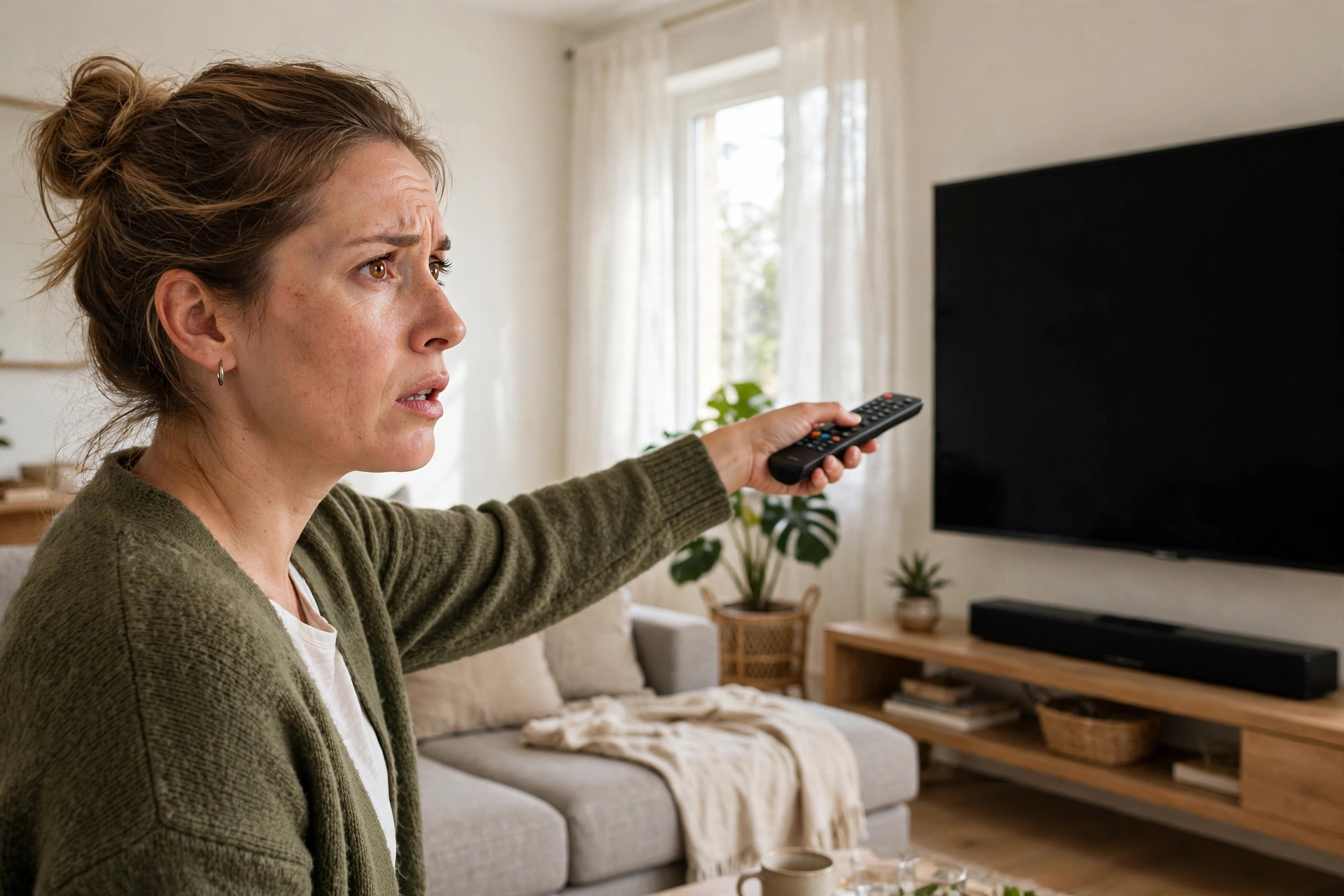
The match is on, you can hear the crowd and the commentator perfectly — but the screen is black. IPTV sound but no picture is one of the strangest streaming faults: the stream is clearly playing, yet nothing appears on the TV. The good news is that it is almost never a broken TV, and in most cases one of eight simple checks brings the picture back.
This fault is usually about how the picture is decoded or carried to the screen, not about the stream itself. A wrong video setting, a tired HDMI cable or an app glitch can all mute the picture while the audio keeps flowing. Work through the fixes below in order — most people find the answer in the first three.
Why Does My IPTV Have Sound but No Picture?
IPTV sound but no picture happens because audio and video travel as two separate streams inside the same broadcast. Your player can decode the audio track while failing on the video track — and the TV stays black. The most common reasons are a video codec your device cannot decode, an HDMI handshake failure between the streaming stick and the TV, a wrong resolution or refresh-rate setting, or a temporary glitch in the player app.
The first thing to establish is how widespread the fault is. If every channel is black, the problem is your device, cable or app. If only one channel is black, the problem is that channel's feed at the source. That single test — change the channel — saves most of the troubleshooting below.
How Do I Fix a Black Screen With Sound on IPTV?
Start with the fastest fixes: close the player app completely and reopen it, then change to a different channel and back again. If the picture is still missing, restart the TV or streaming stick — unplug it for 30 seconds rather than just pressing standby, because a cold restart resets the HDMI connection. In most cases, one of these two steps restores the picture immediately.
If the screen stays black, the next step is the HDMI chain. Swap the HDMI cable for a different one, try another HDMI port on the TV, and make sure the stick or box is seated firmly. A loose or ageing cable is a classic cause of IPTV sound but no picture, because the audio signal is far less demanding than the 4K video signal — the sound survives a weak connection that the picture cannot.
8 Fixes for IPTV Sound but No Picture
- Change the channel, then change back. If the picture returns on other channels, the fault is that channel's video feed. Report it to your provider and watch something else meanwhile.
- Restart the app and the device. Force-stop the player, then unplug the Firestick, TV or box for 30 seconds. This resets the video decoder and the HDMI handshake.
- Try a different HDMI cable and port. Use a High Speed HDMI cable, plug into another port, and check the TV input matches the port you used.
- Switch the video decoder. In TiviMate, go to Settings, Playback, and change the decoder to software. In IPTV Smarters Pro, try the built-in player instead of the external one. Software decoding is slower but plays almost any video format.
- Lower the resolution. In the player or device settings, drop from 4K to 1080p and test again. If the picture returns, your TV or cable was struggling with the 4K signal — a common cause on older TVs.
- Turn off HDR or match the frame rate. On Firestick, set Display to 1080p 60Hz and turn off Match Original Frame Rate. Some TVs go black when the frame rate switches mid-stream.
- Clear the app cache. On Firestick, go to Settings, Applications, Manage Installed Applications, choose your player and tap Clear Cache. A corrupted cache can block video while audio keeps playing.
- Update the player and the TV firmware. Check for app updates, then check the TV for a software update in its settings menu. Manufacturers regularly fix HDMI and codec bugs this way — Samsung support and LG support both publish the latest firmware for their TVs.
Could the HDMI Cable Be the Problem?
Yes — more often than people expect. A cable that worked fine for years can fail when you switch to a higher resolution, because 4K video at 60 frames per second needs far more bandwidth than 1080p. The audio track is tiny by comparison, so it keeps playing through a cable that can no longer carry the picture. If a new cable fixes it, keep the old one out of the drawer: it will fail again on the next 4K channel.
A stable connection matters too. The FCC broadband speed guide recommends 25 Mbps for 4K streaming, and Ookla Speedtest shows your real speed in seconds. A connection that is too slow usually causes buffering rather than a black screen, but a connection that keeps dropping can interrupt the video track while the audio buffer carries on.
When to Ask Your Provider for Help
If the picture is missing on every device and every app, with different cables and different channels, the fault is almost certainly at the source: the channel's video feed is broken on the provider's side. Message support with the channel name and the time it failed — a good provider can check the feed and switch sources in minutes.
Tired of fixing other providers' streams? See the 4K Media TV plans — every plan includes a free 24-hour trial, so you can test the picture quality on your own TV before paying anything.
About 4K Media TV: 4K Media TV is a Premium IPTV service with 57,000+ live channels and 185,000+ movies and series in HD, FHD and 4K. Plans are one-time payments: 1 month from $19.99, 3 months from $39.99, 6 months from $59.99 and 12 months from $99.99 for one device, with up to 4 devices. Every plan includes a free 24-hour trial, activation within 10 minutes to 8 hours, and ordering on WhatsApp.
Frequently Asked Questions
Why is my IPTV screen black but I can hear sound?
The screen is black with sound because the audio stream is decoding while the video stream is not. The usual causes are a video codec the device cannot play, a faulty HDMI cable or port, or a wrong resolution setting. Restart the app and device, then try another HDMI cable.
Can a bad HDMI cable cause sound but no picture on IPTV?
Yes. Audio needs very little bandwidth, so it keeps playing through a weak or ageing HDMI cable that can no longer carry the 4K video signal. Swap in a High Speed HDMI cable and try a different port on the TV.
Why is only one IPTV channel black with sound?
When only one channel has sound but no picture, that channel's video feed is broken at the source. Other channels will play normally. Report the channel name to your provider so they can fix or replace the feed.
Does changing the video decoder fix a black IPTV screen?
Often, yes. Switching the player to software decoding in TiviMate or IPTV Smarters Pro lets the app decode video formats the hardware decoder cannot handle, which restores the picture on stubborn channels.
Related Guides
- IPTV Buffering? 9 Fixes That Actually Stop the Freezing
- How to Watch IPTV on a Smart TV (Samsung, LG and Android TV)
- How to Install IPTV on Firestick: Step-by-Step Setup Guide
- How Much Internet Speed Do You Need for IPTV? The Complete 2026 Guide
- How to Watch IPTV on Samsung TV: Complete Setup Guide for 2026
More from 4K Media TV: our sister guides live at stream4kmedia.com and originetv.space, the same Premium IPTV service, with setup help for every device.
Try it free for 24 hours: message us on WhatsApp at +212 638 196 267 and we will set up your free trial. You can also follow our WhatsApp Channel for offers and updates.
Try 4K Media free for 24 hours
Full Premium access — every channel, every match, all VOD — free for a full day.
See Premium Plans Get 24H Trial