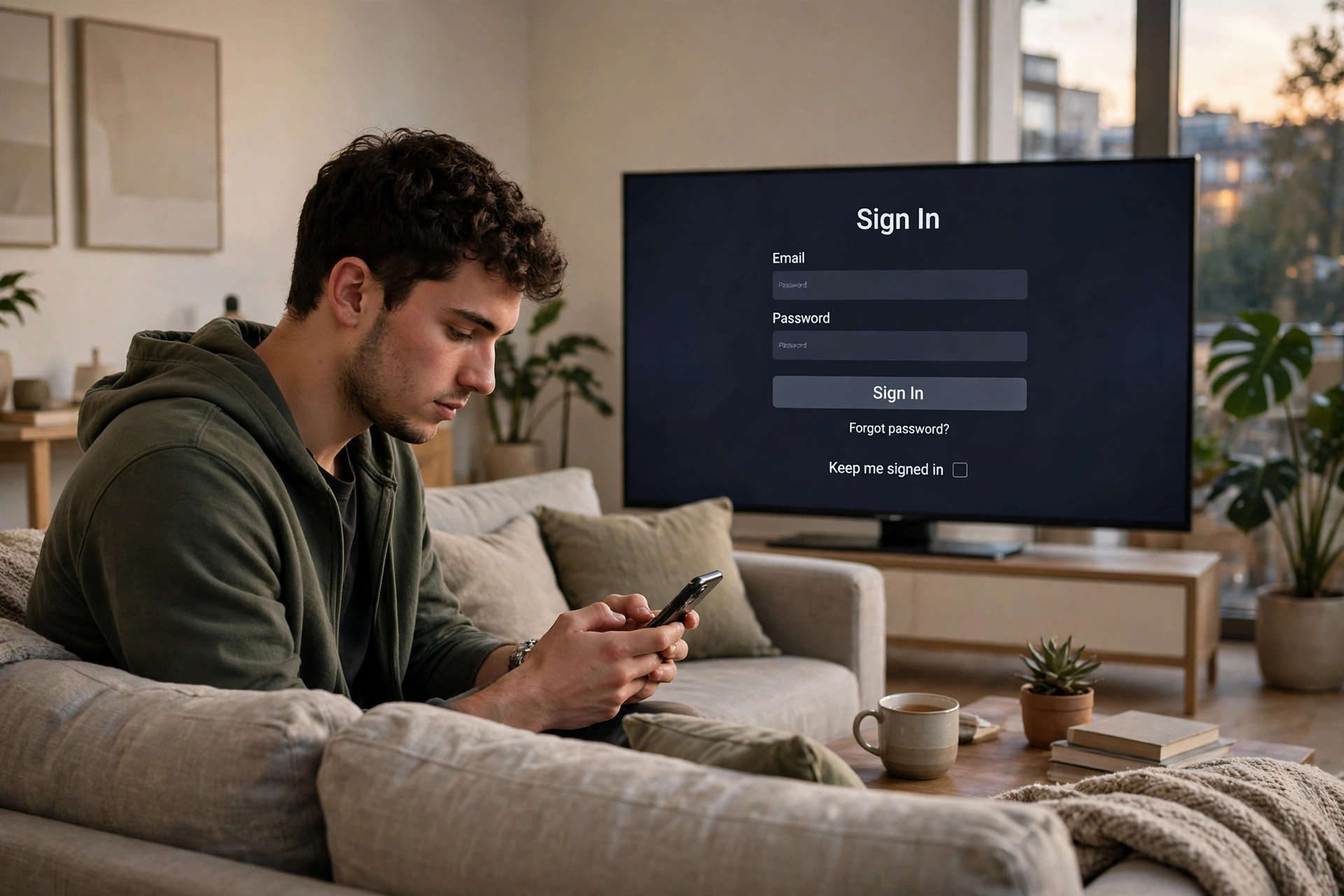
IPTV Login Failed? The Complete Checklist to Fix Invalid Username Errors in 2026
You type the username and password exactly as they arrived, press sign in — and the app answers "Login failed". IPTV login failed errors are the single most common support question in IPTV, and the cause is usually small: a mistyped character, an expired subscription, or a playlist that needs refreshing. This checklist works through every cause in order, from the thirty-second fixes to the ones that need your provider.
Before anything else, check one thing: are you copying the details, or typing them? Most login failures come from typing. Usernames and passwords for IPTV are case-sensitive, often contain lookalike characters such as a lowercase L and the number 1, and are long enough that a single wrong character locks you out. Copy and paste from the original message whenever you can.
Why Does IPTV Say "Login Failed"?
An IPTV login failed message means the app could not verify your account with the provider's server. The server checks three things: that the username exists, that the password matches, and that the subscription is active. If any one of those fails, you get the same short error — the app does not tell you which one, which is why the fix is a checklist rather than a single step.
There are also failures that have nothing to do with your details. The provider's login server can be temporarily down, your internet connection can drop at the exact moment you sign in, or the app can be holding a corrupted copy of your old login. The checklist below separates those cases in a few minutes.
How Do I Fix an IPTV Login Failed Error?
Work through this checklist in order, testing the login after each step. Most people are back in within five minutes.
- Copy, do not type. Open the original message from your provider, long-press the username, copy it, and paste it into the app. Do the same for the password. This alone fixes most login failures.
- Check for extra spaces. A space before or after the username or password breaks the login. If you typed the details, delete the field completely and paste again.
- Check capital letters. IPTV logins are case-sensitive. Make sure autocorrect or auto-capitalisation on your phone keyboard did not change the first letter.
- Confirm the subscription is active. If the plan expired, the login fails even with the right details. Check the expiry date in your provider's message, or ask support on WhatsApp.
- Restart the app and the device. Force-stop the player, unplug the Firestick or TV for 30 seconds, and try again. A stuck session can keep rejecting a good login.
- Check your internet. Open another app or run Ookla Speedtest to confirm you are online. The FCC broadband speed guide lists 25 Mbps as plenty for 4K streaming — but even a slow connection is enough to sign in, so any result at all rules the connection out.
- Re-add the playlist. Remove the playlist or Xtream Codes login from the app and add it again from scratch with the exact server URL, username and password your provider sent.
- Try another device. Sign in on your phone. If it works there, the problem is the first device or its app — clear the cache or reinstall the player.
- Check for too many connections. If your plan allows one device and another device is already streaming, the second login can fail. Sign out everywhere else and try again.
Is My Subscription Expired?
An expired subscription is the most common cause of a login that suddenly stops working after months of trouble-free viewing. The app gives the same "login failed" error for an expired account as for a wrong password, so check the expiry date first. Your provider's welcome message usually states the start date and length — a 1-month plan bought on the 5th ends on the 5th of the next month, not at the end of the month.
If the plan has expired, renewing restores the same login instantly in most cases — there is nothing to set up again. Our 24-hour free trial guide explains how a trial works if you want to test a service before paying for a longer plan.
What If the Username and Password Are Correct but Login Still Fails?
If you have copied the details exactly, confirmed the subscription is active, and tried a second device, the problem is at the provider's end: the account may be locked after too many failed attempts, the login server may be down, or the playlist may have been moved to a new server address. Wait ten minutes and try once more — repeated failed attempts can extend a temporary lock — then message support with your username and the exact error message.
One warning: never share your login with strangers who offer to "fix" it, and never type your details into a website that is not your provider's own. A genuine provider fixes login problems on WhatsApp or by email, and never asks for your password in a chat message.
Locked out of your old service? See the 4K Media TV plans — a free 24-hour trial gets you watching today, with the login details sent to your WhatsApp in minutes.
About 4K Media TV: 4K Media TV is a Premium IPTV service with 57,000+ live channels and 185,000+ movies and series in HD, FHD and 4K. Plans are one-time payments: 1 month from $19.99, 3 months from $39.99, 6 months from $59.99 and 12 months from $99.99 for one device, with up to 4 devices. Every plan includes a free 24-hour trial, activation within 10 minutes to 8 hours, and ordering on WhatsApp.
Frequently Asked Questions
Why does IPTV keep saying login failed with the correct password?
IPTV keeps saying login failed when a hidden character is wrong — an extra space, a capital letter changed by autocorrect, or a lookalike character such as a lowercase L and the number 1. Copy the username and password from the original message instead of typing them.
Can an expired IPTV subscription cause a login failed error?
Yes. An expired subscription gives the same login failed error as a wrong password. Check the expiry date in your provider's message: if the plan has ended, renewing restores the same login immediately.
How many devices can I log in to IPTV at once?
It depends on your plan. A one-device plan allows one active stream, so a second login can fail while the first device is streaming. Plans with two, three or four devices allow that many simultaneous logins.
What should I do if IPTV login fails on all devices?
If login fails on every device with the correct details, the provider's login server is likely down or the account is locked. Wait ten minutes, try once more, then contact support with your username and the exact error message.
Related Guides
- IPTV Smarters Pro Setup: Complete Guide for Firestick and Android in 2026
- TiviMate IPTV Setup: Complete Guide for Firestick and Android in 2026
- How to Install IPTV on Firestick: Step-by-Step Setup Guide
- IPTV 24-Hour Free Trial: How It Works
- VPN for IPTV: Do You Really Need One in 2026?
More from 4K Media TV: our sister guides live at stream4kmedia.com and originetv.space, the same Premium IPTV service, with setup help for every device.
Try it free for 24 hours: message us on WhatsApp at +212 638 196 267 and we will set up your free trial. You can also follow our WhatsApp Channel for offers and updates.
Try 4K Media free for 24 hours
Full Premium access — every channel, every match, all VOD — free for a full day.
See Premium Plans Get 24H Trial