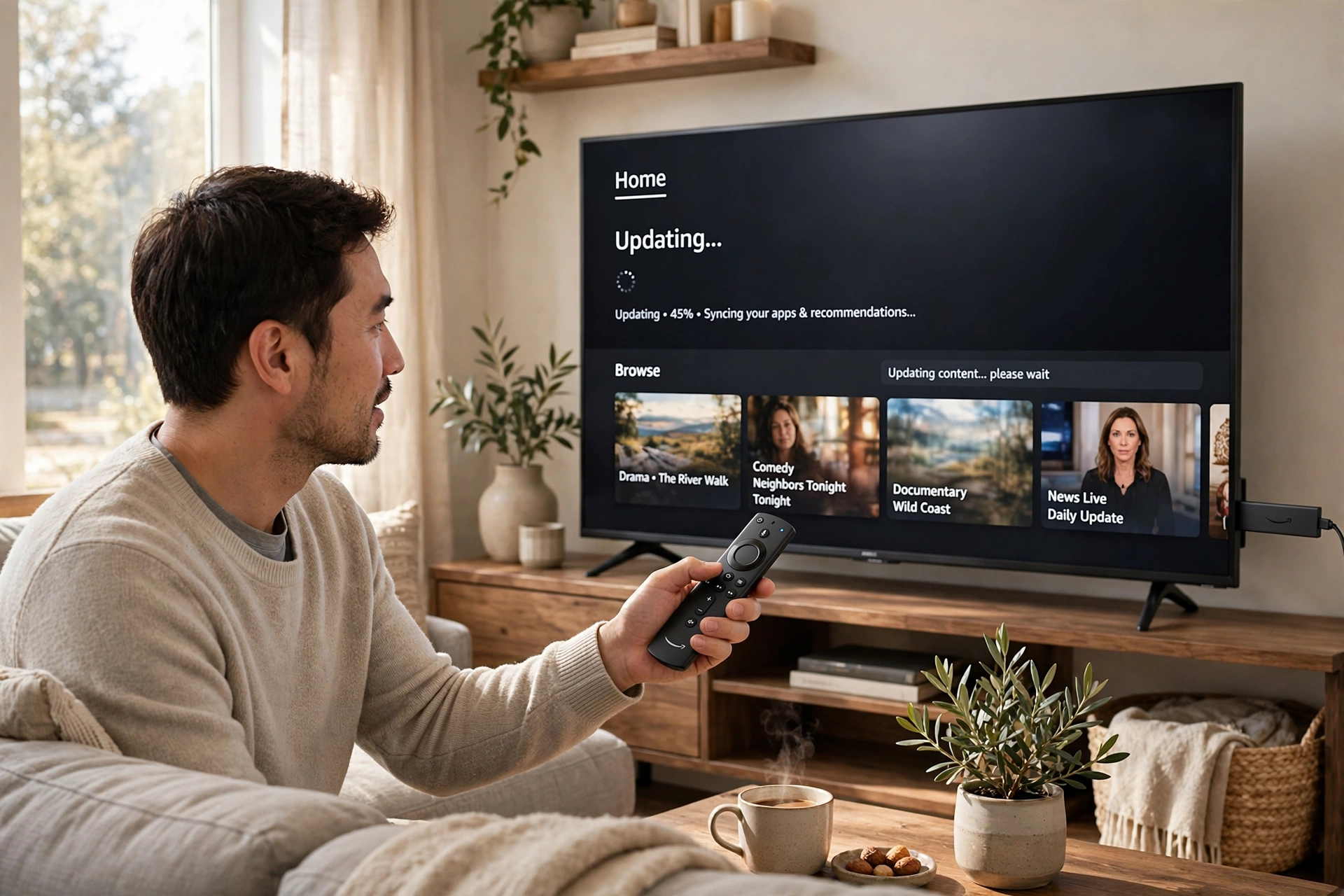
How to Update IPTV on Firestick: Keep Your App and Playlist Current in 2026
This guide walks through how to update IPTV on Firestick properly in 2026, in the right order, without losing your favourites or your login.
If you are still choosing a player, our guide to IPTV on Firestick covers the first install from scratch, while this article is about keeping an existing setup current.
Why does my IPTV look out of date even though I pay on time?
Your subscription and your app are different things. Your provider updates the channel list on its servers constantly — adding channels, removing dead ones and fixing streams — but your Firestick only sees those changes when the playlist stored on the device is refreshed. The EPG is a second file again, usually refreshed on its own schedule. And the player app itself only updates when Amazon or the app developer releases a new version.
How do you update the IPTV app itself?
- From the Firestick home screen, open Settings > Applications > Manage Installed Applications and note your player's version.
- If you installed from the Amazon Appstore, open the Appstore, search for the app and choose Update if the button appears.
- If you sideloaded the app with Downloader, open Downloader, return to the same trusted download address you used originally, and install the new file over the old one. Installing over the top keeps your login and playlists.
- Open the app once after updating and let it finish any first-run optimisation before you judge the speed.
How do you refresh the playlist and EPG?
With the app current, refresh the data inside it. In most players — including TiviMate and IPTV Smarters style apps — you will find the options under Settings > Playlists or Settings > EPG.
- Choose your playlist and tap Update playlist or Refresh. Wait for the channel count to finish changing before backing out.
- Then open the EPG section and choose Update EPG. A full guide download can take two to five minutes on a slow connection.
- Set both to update automatically: playlist on app start, EPG every 12 or 24 hours. That way you rarely need this manual routine again.
- If channels still look wrong, log out and back in with the Xtream Codes details or M3U link your provider gave you. A fresh login forces a complete rebuild of the list.
Our walkthrough of the TiviMate IPTV setup shows exactly where these refresh switches live in TiviMate's menus.
Clear the cache and restart: the step everyone skips
Firesticks have modest storage, and IPTV apps fill their cache with channel logos, guide data and artwork. Go to Settings > Applications > Manage Installed Applications, select your player, and choose Clear cache — not Clear data, which would delete your login. Then restart the stick from Settings > My Fire TV > Restart. If streams still stutter afterwards, work through our IPTV buffering fixes before changing anything else.
4K Media TV plans and pricing
| Plan | 1 device |
|---|---|
| 1 month | $19.99 |
| 3 months | $39.99 |
| 6 months | $59.99 |
| 12 months | $99.99 |
See all plans and prices — every plan is a single one-time payment and starts with a free 24-hour trial.
Need more screens at once? On the 12-month plan, 2 devices cost $169.99, 3 devices cost $199.99 and 4 devices cost $269.99. Every price is a single one-time payment — no monthly direct debit, no contract and no hidden renewal. Your login is prepared and sent to you ready within 10 minutes to 8 hours after ordering.
Stay Safe While Streaming
Updating a sideloaded player means downloading app files from the web, and that corner of the internet is full of tampered copies carrying malware. Antivirus protection checks every download before it touches your Firestick, and an ad blocker silences the fake download buttons on the pages you visit. A reliable VPN keeps the whole routine private from your internet provider. Some of the links in this section are affiliate links — we may earn a commission at no extra cost to you.
About 4K Media TV: 4K Media TV is a Premium IPTV service with 57,000+ live channels and 185,000+ movies and series in HD, FHD and 4K. Plans are one-time payments: 1 month from $19.99, 3 months from $39.99, 6 months from $59.99 and 12 months from $99.99 for one device, with up to 4 devices. Every plan includes a free 24-hour trial, activation within 10 minutes to 8 hours, and ordering on WhatsApp.
Frequently Asked Questions
How often should I update IPTV on my Firestick?
Refresh the playlist weekly or whenever your provider announces channel changes, let the EPG update automatically every day, and accept app updates when they appear. A manual check once a month keeps everything healthy.
Will updating the app delete my login or favourites?
Updating over the top of the existing app keeps your data. Only uninstalling, or choosing Clear data in the Firestick settings, removes your login and favourites, so avoid both unless support asks you to do a clean install.
My channels updated but the guide is still wrong. Why?
The playlist and EPG are separate files. Updating one does not update the other, so run the EPG update from the app's EPG settings and check your Firestick's date and time are set automatically — a wrong clock shifts the whole guide.
Do I need a new subscription after an update?
No. Updates never change your account. If the app asks for login details after a major update, simply sign in again with the same username, password and server address your provider originally sent you.
Related Guides
- How to Watch IPTV on Firestick: The Complete Setup Guide for 2026
- TiviMate IPTV Setup: The Complete Beginner-Friendly Guide for 2026
- IPTV Buffering Fixes: How to Stop Freezing and Lagging in 2026
- VPN for IPTV: Do You Need One and Which Should You Choose in 2026
More from 4K Media TV: our sister guides live at stream4kmedia.com and originetv.space, the same Premium IPTV service, with setup help for every device.
Try it free for 24 hours: message us on WhatsApp at +212 638 196 267 and we will set up your free trial. You can also follow our WhatsApp Channel for offers and updates.
Try 4K Media free for 24 hours
Full Premium access — every channel, every match, all VOD — free for a full day.
See Premium Plans Get 24H Trial