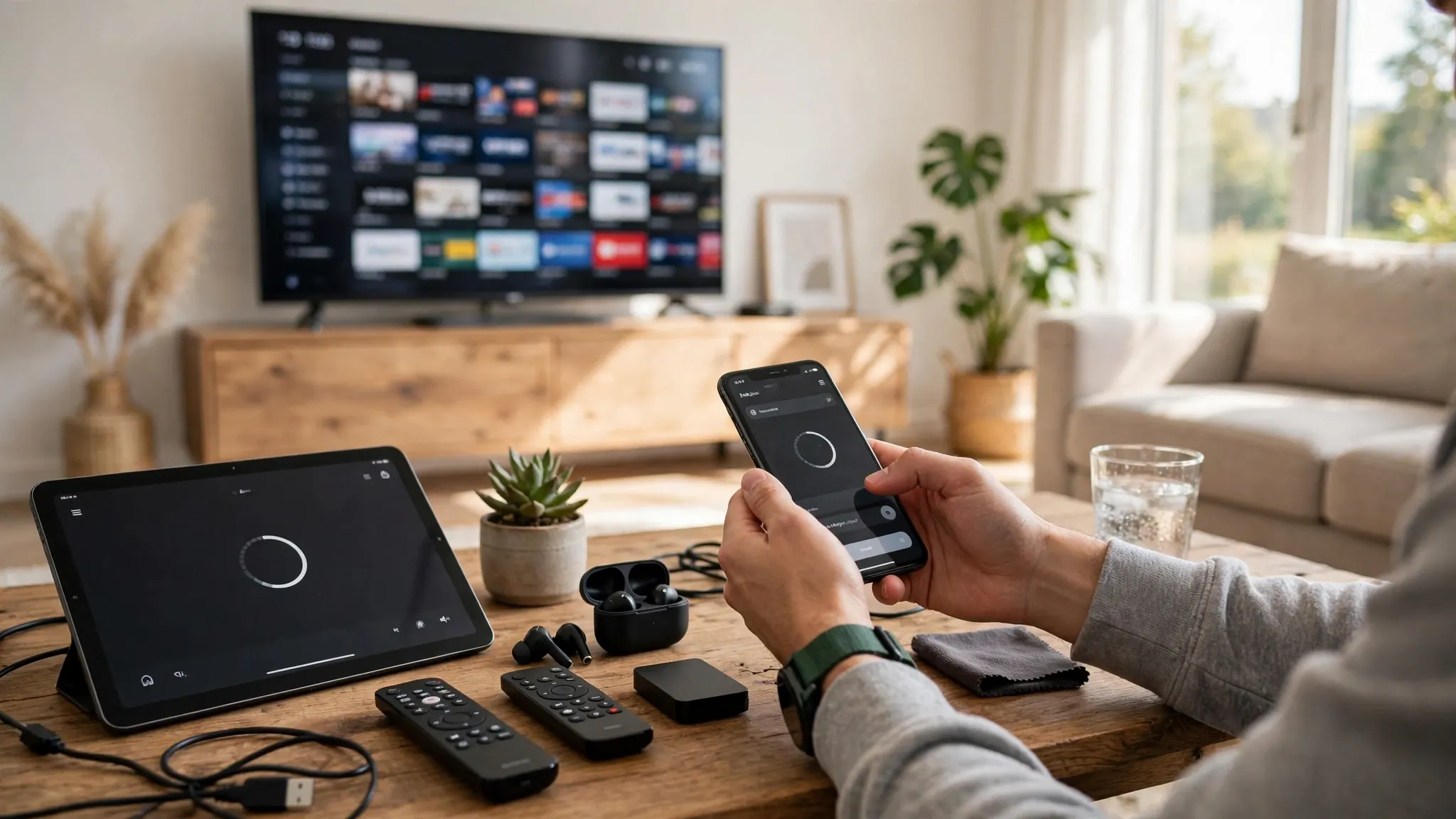
4KMedia IPTV: How to Watch 4K Channels, Sports and Movies on Any Device in 2026
Setting up a new streaming service sounds technical — with 4kmedia iptv it genuinely is not. 4KMedia IPTV gives you 4K channels, live sports and a large movies and series library through one player app, and most viewers are watching within ten minutes of receiving their login. This setup-focused guide walks through exactly what the service offers, then gives you step-by-step setup for Firestick, Samsung and LG Smart TVs, Android TV and Apple TV, the internet speed you need, how to fix buffering, and how to set up the program guide properly the first time.
What 4kmedia iptv offers
At its core, the service is simple: more than 20,000 live channels plus movies and series on demand, delivered over the internet to an app on your device. Sports, news, entertainment, kids and international channels sit alongside premium movie channels, with HD, FHD and 4K quality where broadcast. Anti-freeze, load-balanced servers keep prime-time and live sport stable, and every plan includes the full TV guide and catch-up on supported channels.
- Live channels and sport in HD, FHD and 4K, including major US sports coverage.
- Movies and series on demand, updated regularly, in the same app as live TV.
- EPG and catch-up so you can plan viewing and rewatch what you missed.
- 1 to 4 devices on one subscription, from the main TV to your phone.
- Human support on WhatsApp if you get stuck at any step below.
Before you start: speed, device and your 4kmedia iptv login
You need three things: a device connected to the internet, a steady connection, and your login details, which arrive by WhatsApp after you order or start a trial. For speed, plan on about 10–15 Mbps for HD and 25 Mbps or more for a single 4K stream — add headroom for each extra screen watching at once. Test your real speed with the Ookla speed test, ideally in the evening on the device you will watch on. If the result is well below your plan speed, restart the router and retest closer to it before blaming the service.
Also update your device software first. Updated firmware keeps player apps stable and is the quiet fix for half of all setup problems.
Step-by-step: 4kmedia iptv on Firestick
- From the Firestick home screen, open Search and install a recommended IPTV player app (we send the current best choice with your login).
- Open the player and choose to sign in with your subscription login or playlist details.
- Enter the details exactly as sent, then allow the channel list to load fully.
- Load the EPG when prompted and wait for the guide to finish syncing.
- Open a live channel, then add your favorites so your main channels sit at the top.
Total time is usually five to ten minutes. Keep the Firestick's storage partly free and its software updated for the smoothest results.
Setup on Samsung and LG Smart TV, Android TV and Apple TV
Samsung and LG Smart TVs
- Open the TV's app store (Samsung Apps or LG Content Store) and install the recommended player app. LG support covers app installs and firmware updates for LG models.
- Launch the app and sign in with your subscription details.
- Load channels and the EPG, then set your favorites.
Android TV
- Open the Google Play Store on the TV and install the player app; Android TV help covers system updates if the store asks for one first.
- Sign in, load the playlist and guide, and pin the app to your home row.
Apple TV
- Open the App Store on Apple TV and install a compatible IPTV player.
- Add your login or playlist inside the app, load the guide, and organize favorites.
On every platform the pattern is identical: install player, sign in, load channels and guide, save favorites. Once you have done one device, the rest of the house takes two minutes each. Compare plans for multi-device homes on the 4KMedia IPTV Premium pricing page.
Fixing buffering and setting up the EPG properly
If a stream buffers, work through these fixes in order — most solve the problem the same evening:
- Wire it in. Ethernet to the TV or stick removes Wi-Fi from the equation entirely.
- Restart everything. Router, then device, then reopen the player. Simple, and surprisingly effective.
- Move closer or add mesh. A weak signal in the TV room is the most common cause of freezing.
- Close background downloads and pause cloud backups while you watch live sport.
- Let the first load finish. A full channel list and guide sync once; interrupting it causes repeat loading.
For the EPG, make sure your device time zone is correct, trigger a guide refresh inside the player, and give the first sync a few minutes. After that the guide opens instantly and shows programs in your local time. Common setup questions are covered in the 4K Media FAQ, and our overview of what 4KMedia IPTV includes and how Premium works is worth reading before you choose a plan.
Why try the 24-hour free trial before paying
Setup guides tell you how a service should work; a trial proves how it works in your home, on your connection, at your busiest viewing hour. The free 24-hour trial includes the complete Premium service, so test it honestly: a live match at peak time, your ten must-have channels, the guide against real start times, and every device you set up above. If it all runs smoothly — and for most homes it does — ordering takes a minute in the same WhatsApp chat.
Pricing stays simple when you are ready: Premium only, one-time payment, ready within 10 min – 8H — 1 Month from $19.99 for 1 device and 12 Months from $99.99 for 1 device, with 2, 3 and 4-device options on the pricing page. Start free, set up once, and enjoy 4K channels, sports and movies on any device.
Sources & further reading
Try it free for 24 hours
Free 24H trial of the full Premium service — one-time payment plans, ready within 10 min – 8H.
See Premium Plans Get 24H Trial