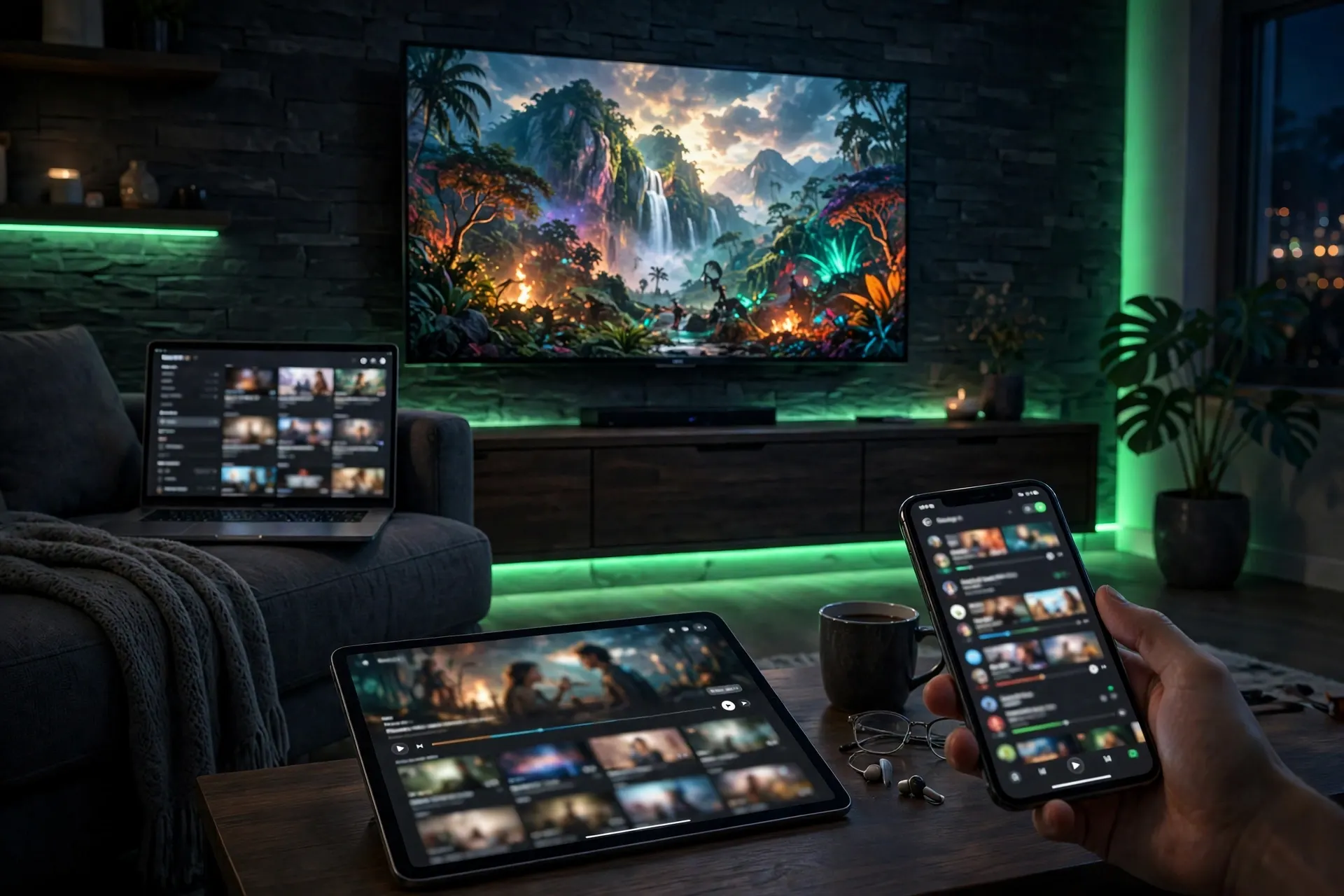
IPTV on Multiple Devices: One Subscription for Every Screen in Your Home (2026)
One television per house is long gone. Today the living-room TV, a bedroom set, two phones, a tablet and a laptop all compete for screen time — and 4K Media IPTV is designed for exactly that reality. Instead of buying a separate subscription for every screen, you choose how many devices your plan covers — 1, 2, 3 or 4 — and the same login works on all of them at the same time. Dad watches the game in the living room, the kids stream a movie in the bedroom, and you catch the news on your phone, all under one 4K Media IPTV subscription. This guide explains how device counts really work, how to work out how many your household needs, what each option costs, and how to set every screen up in minutes.
What "Devices" Mean on a 4K Media IPTV Plan
When a plan says "2 devices", it means two screens can stream at the same time — not that the subscription can only ever be installed twice. You can install your player app on as many devices as you like: the TV, a Firestick, your phone, a tablet, a laptop. The device count is about simultaneous streams. If your plan covers 2 devices and a third screen tries to play while two are already watching, the third stream will not start until one of the others stops. That single detail explains most "my IPTV stopped working" messages we receive — the fix is simply matching the plan to the household. It also means a 1-device plan is perfectly fine for a single viewer who moves between screens, as long as only one plays at a time.
How Many Devices Does Your Household Actually Need?
Count simultaneous viewers at your busiest moment — usually a weekday evening or a big match — not the number of screens you own:
- 1 device — you live alone, or you are the only person who watches. Perfect for a single TV, or one viewer moving between TV and phone (never both at once).
- 2 devices — the most popular choice for couples: the living-room TV plus a second screen, or two TVs in different rooms used at the same time.
- 3 devices — a family setup: two TVs and a phone or tablet, so nobody has to negotiate for the remote on movie night.
- 4 devices — larger households, shared homes, or sports fans who run the main game on the TV, a second match on a tablet and phones for everyone else. If match days get busy, our guide to watching live sports with 4KMedia TV shows how fans use the extra screens.
A useful rule: count the people, not the gadgets. Three people who might all watch at 8 p.m. need a 3-device plan, even if the house holds eight screens.
How to Set Up 4K Media IPTV on Multiple Devices
Every screen follows the same short routine, and your login details stay identical across all of them:
- Activate your plan or free trial. Message us on WhatsApp and your subscription is ready within 10 min – 8H. You receive one set of login details for the whole household.
- Install a player app on the first device. Start with the main TV — a Smart TV app, Firestick or Android TV player. The Google Play Help pages explain safe installs on Android devices.
- Sign in with the same details everywhere. Add the same login to the second TV, the phones and the tablets. Our IPTV on Android guide and IPTV on Smart TV guide cover the two most common setups step by step.
- Set favorites per person. Most players let each device keep its own favorites list, so the kids' tablet and the living-room TV do not have to share one.
- Test the real scenario. Start streams on every screen your plan covers, at the same time, and let them run for ten minutes. That is the exact load your evenings will create.
What Multi-Device Plans Cost
Adding devices costs far less than a second subscription — the upgrade is a few dollars, not double. On 4K Media Premium, a 1-month plan is $19.99 for 1 device, $35.99 for 2, $45.99 for 3 and $59.99 for 4. On the best-value 12-month plan the same steps are $99.99, $169.99, $199.99 and $269.99 — so a whole year of four simultaneous screens works out at about $22.50 a month. Every option is a one-time payment with no contract, and the full grid for 3 and 6 months is on the Premium pricing section. If you are still deciding between plan lengths, our step-by-step buying guide walks through the checkout choices in order.
Can Everyone Watch Something Different?
Yes — that is the point. Device slots are independent streams, not mirrors of one channel. One screen can show live football while another plays a film from the movie library and a third runs a series episode, all at the same moment. Each device also keeps its own place: pause a series on the tablet and the TV is unaffected. Two practical notes for busy households. First, bandwidth adds up — three simultaneous 4K streams want roughly 60–75 Mbps of real evening speed, while HD streams need about 10–15 Mbps each. Our internet speed for IPTV guide breaks the numbers down, and the FCC's household broadband guide offers a neutral second opinion. Second, if one screen ever buffers while others play fine, the problem is almost always that screen's Wi-Fi corner, not the subscription — the IPTV buffering fixes start with exactly that case.
Frequently Asked Questions
Can I upgrade from 1 device to more later?
Yes. Message us on WhatsApp and we will move you to the device count you need — there is no reason to guess perfectly on day one. Many customers start with 2 devices and step up when the family grows into the service.
Does a phone count as a device if I only watch for five minutes?
Only while it is streaming. A device slot is occupied for the minutes a stream is actually playing; the moment playback stops, the slot is free for another screen.
Can I use my subscription at a second home or while traveling?
Yes — your login works anywhere with a good internet connection, and the device count still applies to simultaneous streams. A VPN can help on hotel or public Wi-Fi; our VPN for IPTV guide explains when it is worth it, and Android TV Help covers TV-side settings if you take a streaming stick with you.
The simplest way to find your number is to live with the service for a day: start the free 24-hour trial, put a stream on every screen at your busiest hour, and see how many your household really uses. Then pick the matching plan from the Premium pricing grid — and if anything is unclear, the homepage FAQ answers the common questions in a minute.
Sources & further reading
Try 4K Media free for 24 hours
Full Premium access — every channel, every match, all VOD — free for a full day.
See Premium Plans Get 24H Trial